|
|
Already a premium subscriber?
|
|
|
|
Flash game not working or 'No Longer Supported'? Fear not! You can still enjoy flash games by downloading the Flash Player Chrome Extension. Simply add it to Chrome, enable it, and all Flash games will work for you!
 An adventure of epic proportions | Best book of the year for young readers "..couldn't put it down" Available Now A Beginner's Guide to Adding Sound Effects and Background Music in CapCutSound effects and background music make videos more engaging and immersive. They enhance the viewer's experience and help convey emotions effectively. CapCut desktop video editor, a user-friendly video editing software, allows beginners to add these audio elements to their projects easily. This blog aims to guide readers on effectively incorporating sound effects and music in the CapCut desktop video editor. In turn, this ensures their videos stand out. Whether creating content for social media or personal projects, when you master these techniques, you can promote your editing skills. Browse the complete blog to learn more about enhancing your videos! 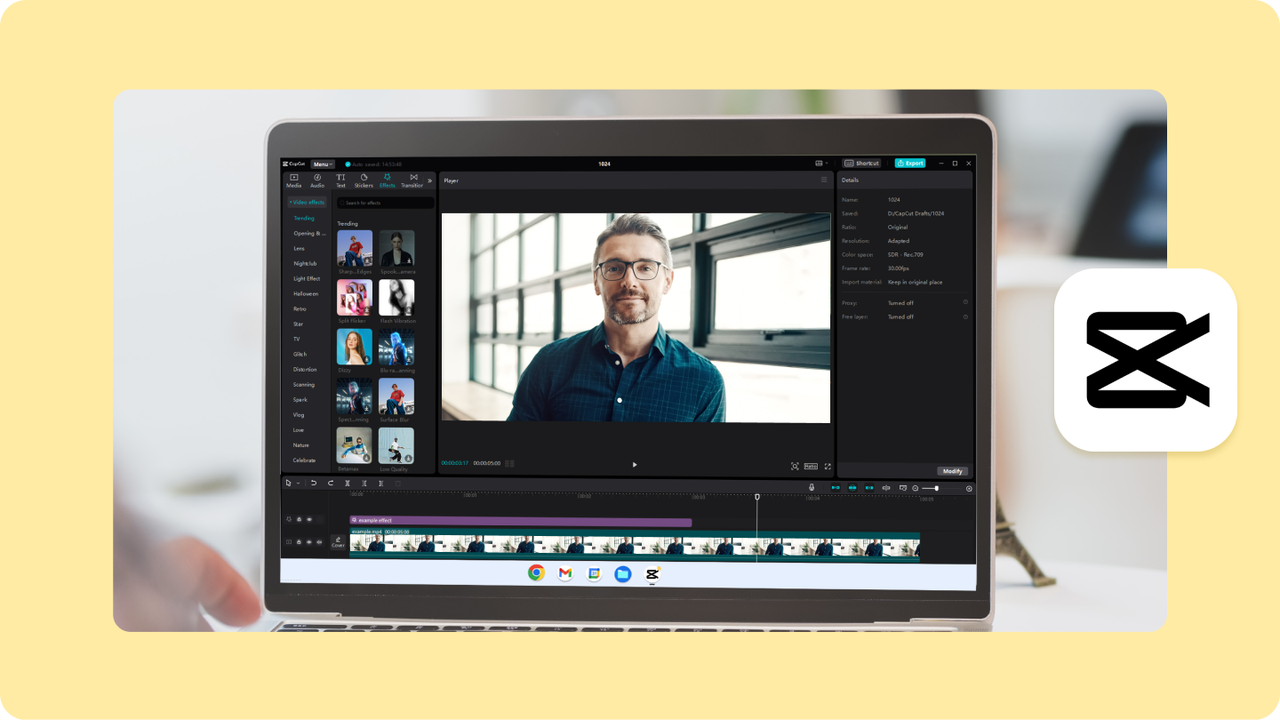 Why Add Sound Effects and Background Music?Importance of Sound in VideosSound plays a key role in storytelling and keeps viewers engaged. It adds depth and emotion to scenes, making them more memorable. - In tutorials, sound effects can highlight important steps. For example, a beep can signal a correct action, guiding the viewer. - In vlogs, background music sets the mood. A cheerful tune can make a happy moment even brighter, while soft music can create a calm atmosphere. - In action scenes, loud sounds can boost excitement. The roar of an engine or the crash of a fall draws viewers in and raises their heart rates. - In horror films, eerie sounds build tension. A creaking door or distant whisper can make viewers uneasy and keep them on edge. Overall, sound shapes how we feel about stories. It connects us to characters and events, making each moment more powerful and engaging. Benefits of Using CapCut for Sound EditingCapCut desktop video editor offers many features that make sound editing easy and fun. - Extensive sound library: Users can choose from various sounds to enhance their videos. - Video background remover: This tool helps create clean and professional-looking edits by removing unwanted backgrounds. - AI caption generator: This feature automatically adds captions, saving time and effort. CapCut is great for beginners, as its simple tools simplify editing. With these features, anyone can create engaging content without hassle. How to Add Sound Effects in CapCut1. Import Your VideoTo import your video into CapCut desktop video editor, follow these steps: - Install and open the CapCut app on your device. - Choose the video you'd like to edit. - Click on the import button to add your video to the project. - Adjust any settings as needed. This process is simple and quick, making it easy for anyone to start editing. With this video editing software, you can create stunning videos quickly. Enjoy exploring the features CapCut offers to enhance your video content! 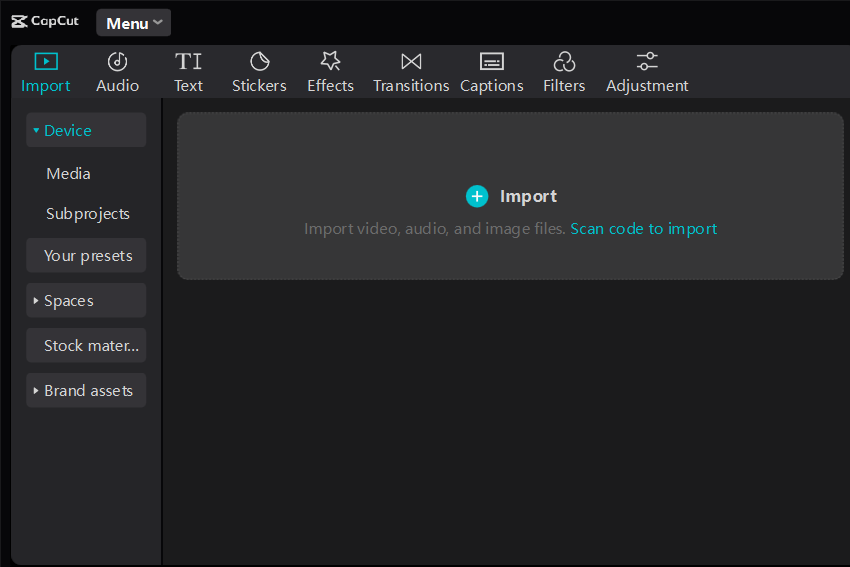 2. Access Sound EffectsTo access sound effects in CapCut desktop video editor, follow these steps: - Open your project in CapCut. - Hit the 'Audio' section in the bottom toolbar. - Select "Effects" to view CapCut's built-in sound effects library. - Browse through categories like Pop, Transition, or Nature to find the sounds you want. - Preview each sound effect by clicking the play button next to it. - Add your chosen sound effect by tapping the "Add" button. - Adjust the timing and volume by dragging the sound layer on the timeline and using the volume slider. You can also upload your sound effects by selecting "Your Music." This allows for more customization and creativity in your videos. Enjoy enhancing your projects! 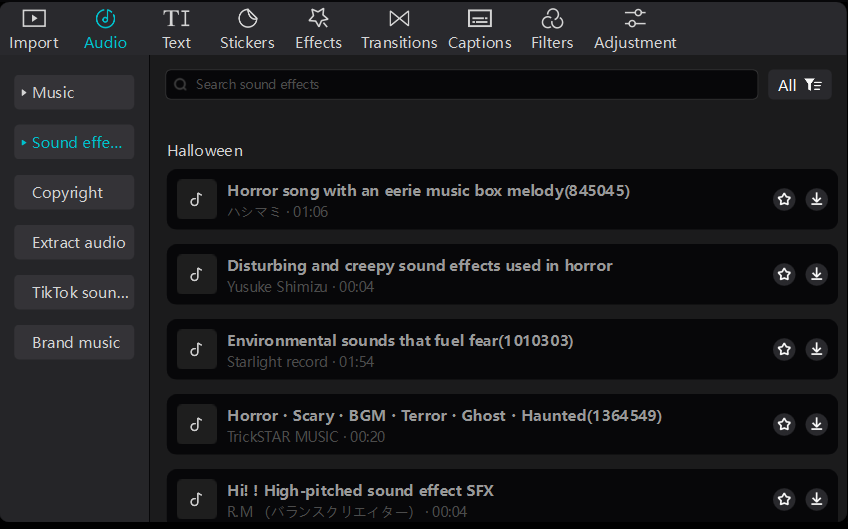 3. Add and Adjust EffectsTo add and adjust effects in CapCut desktop video editor, follow these steps: - Drag and position the sound effect on the timeline. - Adjust the duration, placement, and volume to sync with your video. - Use the AI caption generator to create subtitles that match your audio, enhancing viewer engagement. - Edit the captions for accuracy and style, ensuring they fit well with your video's flow. - Customize text by changing fonts, colors, and sizes to make them stand out. These simple steps will help you create engaging videos that resonate with your audience. Using the AI caption generator can save time and improve accessibility for viewers. 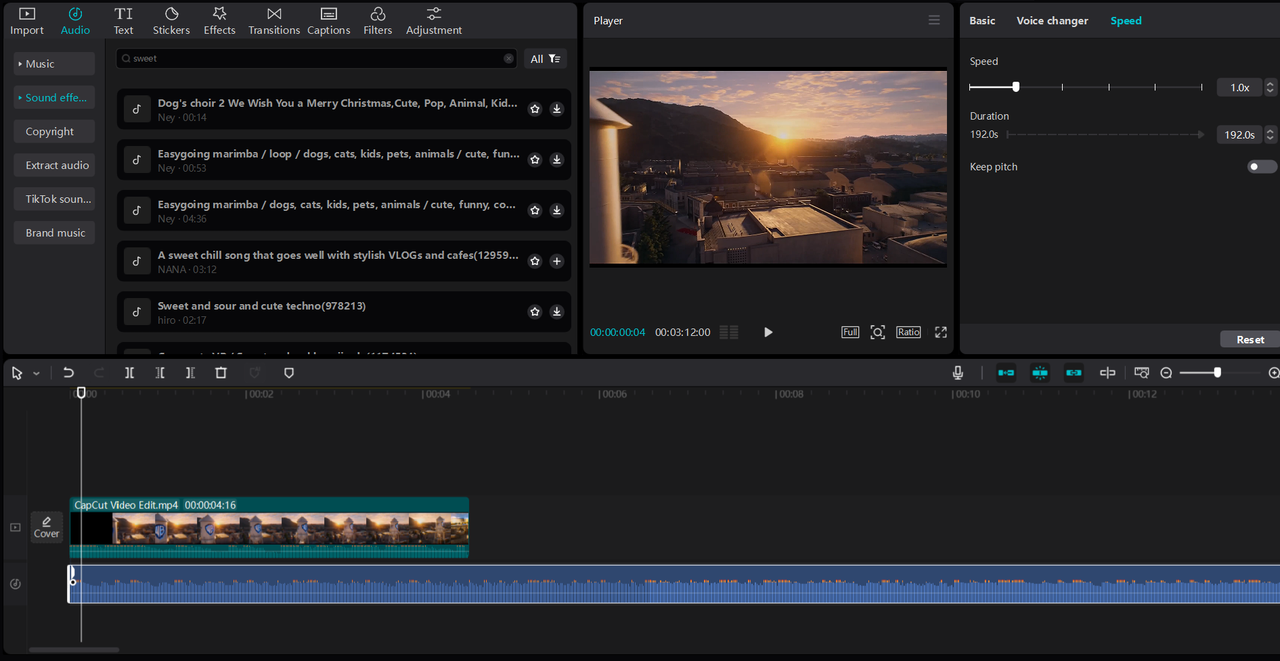 How to Add Background Music in CapCut1. Choose Background MusicTo choose background music in CapCut, follow these steps: - Access the Music Library: Open CapCut and click on the "Audio" tab. - Select a Track: Browse through the library or upload your music. - Match the Mood: Choose music that fits the tone of your video. Upbeat tracks work for fun content, while slower ones suit serious themes. - Check Copyright: Ensure you have the right to use music, especially for public sharing. - Edit as Needed: Adjust the length and volume to fit your video perfectly. These tips will help enhance your video's impact. 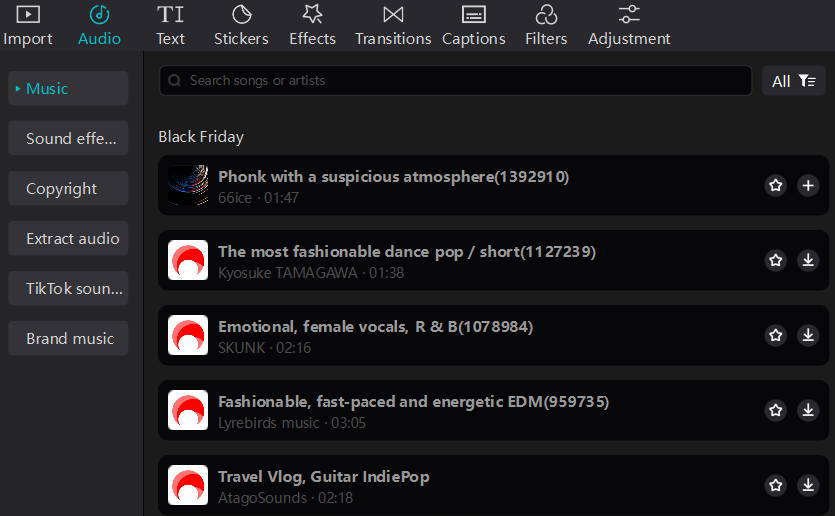 2. Integrate Music into Your VideoTo integrate music into your video using CapCut, follow these steps: - Transfer the music file to the timeline. - Adjust its length to match the video duration. - Select the desired music from the built-in library or upload your own. - Preview the video to ensure the music fits well. - Make any necessary adjustments to volume levels for balance. This simple process allows you to enhance your video with sound, making it more engaging. Using this video editing software makes adding music straightforward and efficient. Enjoy creating your videos! 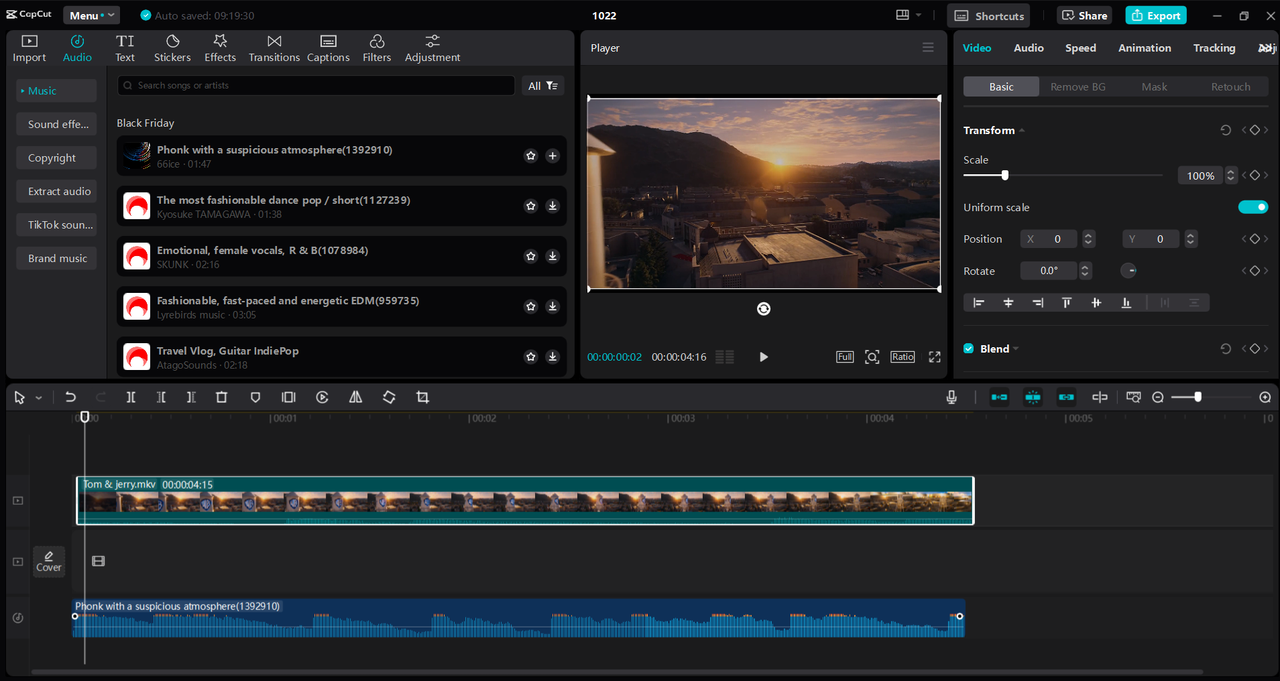 3. Balance Music and Other SoundsTo balance music and other sounds in CapCut desktop video editor, follow these tips: - Use volume controls to adjust background music levels, ensuring it does not drown out dialogue or sound effects. - Preview your audio mix regularly to check for clarity. - Utilize the video background remover to enhance visual focus. This allows audio elements to shine without distraction. - Layer sounds thoughtfully, placing dialogue at the forefront and music subtly in the background. These steps will help create a polished and engaging audio experience in your videos. 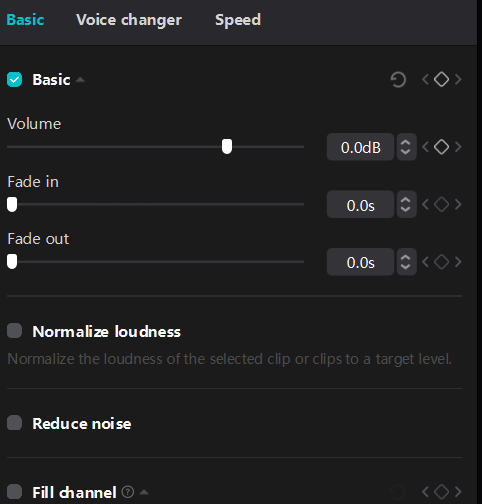 Tips for Effective Sound Design in CapCutBest Practices for Sound Effects and MusicTo enhance your videos in CapCut desktop video editor, avoid using too many sound effects, which can overwhelm viewers. Choose music that matches the video's tone and purpose for a cohesive feel. Utilize the AI caption generator to add synchronized subtitles, giving your content a polished look. Layer sound effects thoughtfully to enrich the audio experience without distraction. Adjust audio levels to ensure dialogue is clear over background music. Lastly, fade-in and fade-out effects are applied for smooth transitions between audio elements, creating a more professional final product. Common Mistakes to AvoidWhen creating audio, avoid abrupt sound changes. These can confuse listeners. Mismatched audio levels can also distract. Therefore, confirm all sounds blend well together. Use clear and steady tones. Keep background noise low to maintain focus. Pay attention to these details for a smoother listening experience that engages your audience. Wrapping UpSound effects and background music are key in making videos more engaging. They add depth and emotion, helping to capture the viewer's attention. Using video editing software like CapCut can enhance your projects significantly. Explore features such as the video background remover to create clean visuals and the AI caption generator to make your content accessible. Experimenting with these tools can elevate your storytelling. Start editing with CapCut today to bring your video ideas to life! |